;stop-opacity:1'%20/%3e%3cstop%20offset='100%25'%20style='stop-color:hsl(259%2076%25%2060%25);stop-opacity:1'%20/%3e%3c/linearGradient%3e%3c/defs%3e%3c!--%20Decorated%20background%20div%20(rounded%20rectangle%20with%20padding%20effect)%20--%3e%3crect%20width='40'%20height='40'%20rx='6'%20fill='url(%23gradientPrimary)'%20filter='drop-shadow(0%204px%206px%20rgba(0,%200,%200,%200.1))%20drop-shadow(0%202px%204px%20rgba(0,%200,%200,%200.06))'%20/%3e%3c!--%20File%20text%20icon%20--%3e%3cg%20transform='translate(8,%208)'%3e%3csvg%20xmlns='http://www.w3.org/2000/svg'%20width='24'%20height='24'%20viewBox='0%200%2024%2024'%20fill='none'%20stroke='white'%20stroke-width='2'%20stroke-linecap='round'%20stroke-linejoin='round'%20class='lucide%20lucide-file-text-icon%20lucide-file-text'%3e%3cpath%20d='M6%2022a2%202%200%200%201-2-2V4a2%202%200%200%201%202-2h8a2.4%202.4%200%200%201%201.704.706l3.588%203.588A2.4%202.4%200%200%201%2020%208v12a2%202%200%200%201-2%202z'%20/%3e%3cpath%20d='M14%202v5a1%201%200%200%200%201%201h5'%20/%3e%3cpath%20d='M10%209H8'%20/%3e%3cpath%20d='M16%2013H8'%20/%3e%3cpath%20d='M16%2017H8'%20/%3e%3c/svg%3e%3c/g%3e%3c/svg%3e)
How to Split a PDF Into Multiple Files (No Software Needed)
By Ayesha Iftikhar · Published
A 200-page report doesn't need to travel as one file. Here's how to break a PDF into exactly the pieces you need — by page, by count, or by size.
Try the Split Tool: free, no upload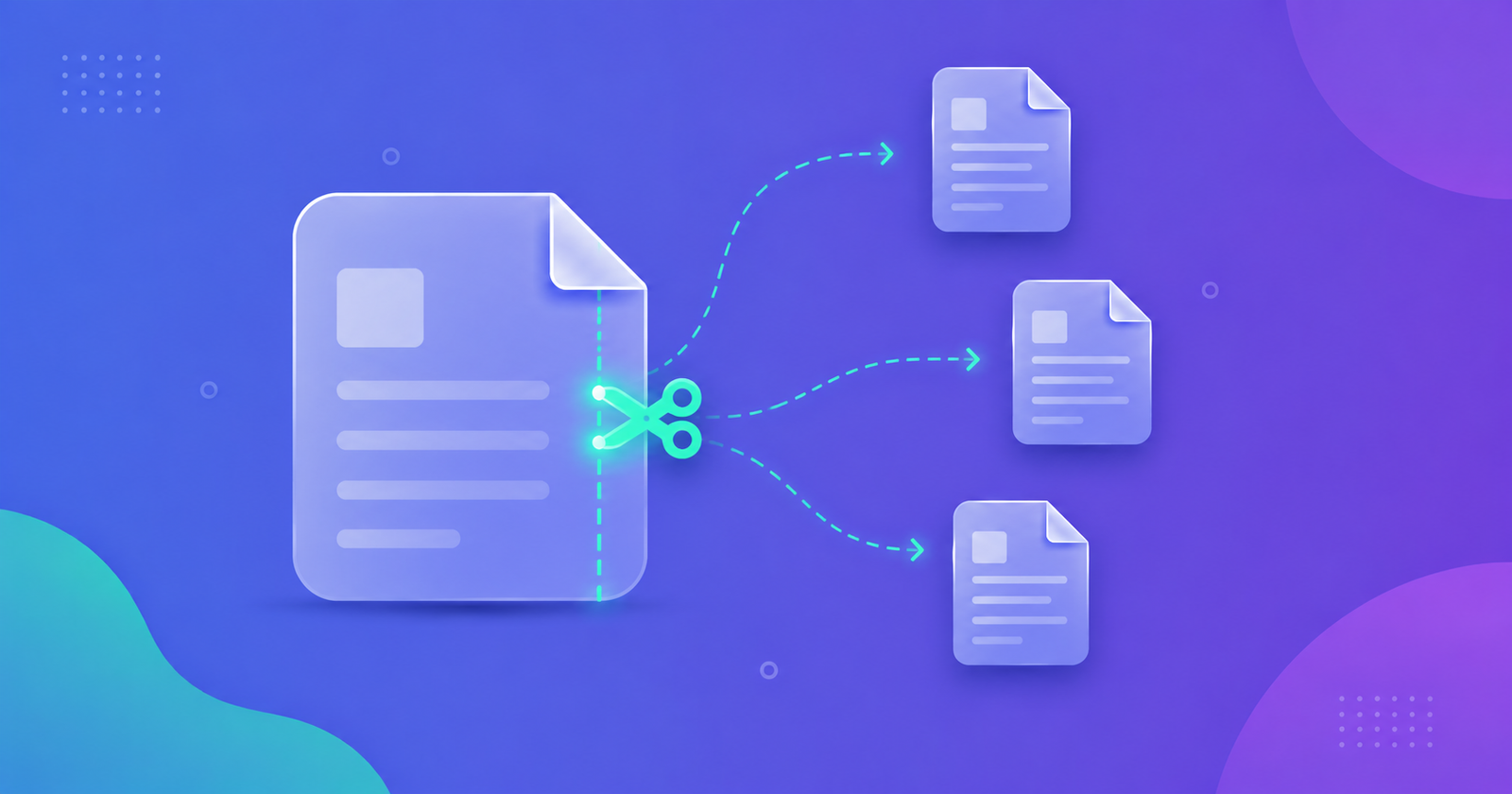
Splitting a PDF is the flip side of merging — instead of combining documents, you're breaking one large file into smaller, more useful pieces. Maybe you only need chapter 3 of a report, or you need to send each invoice in a batch as its own file. Here's how to do it without any software install.
Common Reasons to Split a PDF
- Extracting a single chapter or section from a long report or textbook.
- Breaking a scanned batch of invoices into individual files, one per customer.
- Sending only the relevant pages of a contract instead of the whole document.
- Splitting a large file into parts small enough to fit an upload or email limit.
- Separating a combined statement into monthly files for record-keeping.
Four Ways to Split a PDF
1. Split every page into its own file
Turns each page of the PDF into a standalone document. Useful when every page needs to be handled or filed separately, like a stack of scanned receipts.
2. Split by a fixed page count
Breaks the document into equal chunks — every 10 pages, every 25 pages, and so on. Good for dividing a long report into manageable sections without manually picking page ranges.
3. Split by custom page ranges
Lets you define exactly which pages go into each output file — for example, pages 1–5 in one file and pages 6–20 in another. This is the option to use when you need a specific chapter or section, not an even split.
4. Split by file size limit
Divides the document so that no resulting file exceeds a size you specify — handy when the goal isn't a logical section but simply staying under an upload cap.
Step-by-Step Guide
- Open the Split tool and upload the PDF you want to divide.
- Choose a split method: every page, fixed page count, custom ranges, or file size limit.
- Preview the resulting page groups before confirming.
- Click Split and download — you'll get each piece as a separate file, generated locally with nothing uploaded.
Extracting Just One Page or Chapter
If you only need a small portion of a document, custom page ranges are the fastest route — enter the exact pages you want (say, 12–18) and everything else is discarded from that output file. There's no need to split the whole document first and then delete the parts you don't want. To save a handful of pages as one new file, Extract PDF Pages does it in a single step; see how to extract pages from a PDF.